 by
by 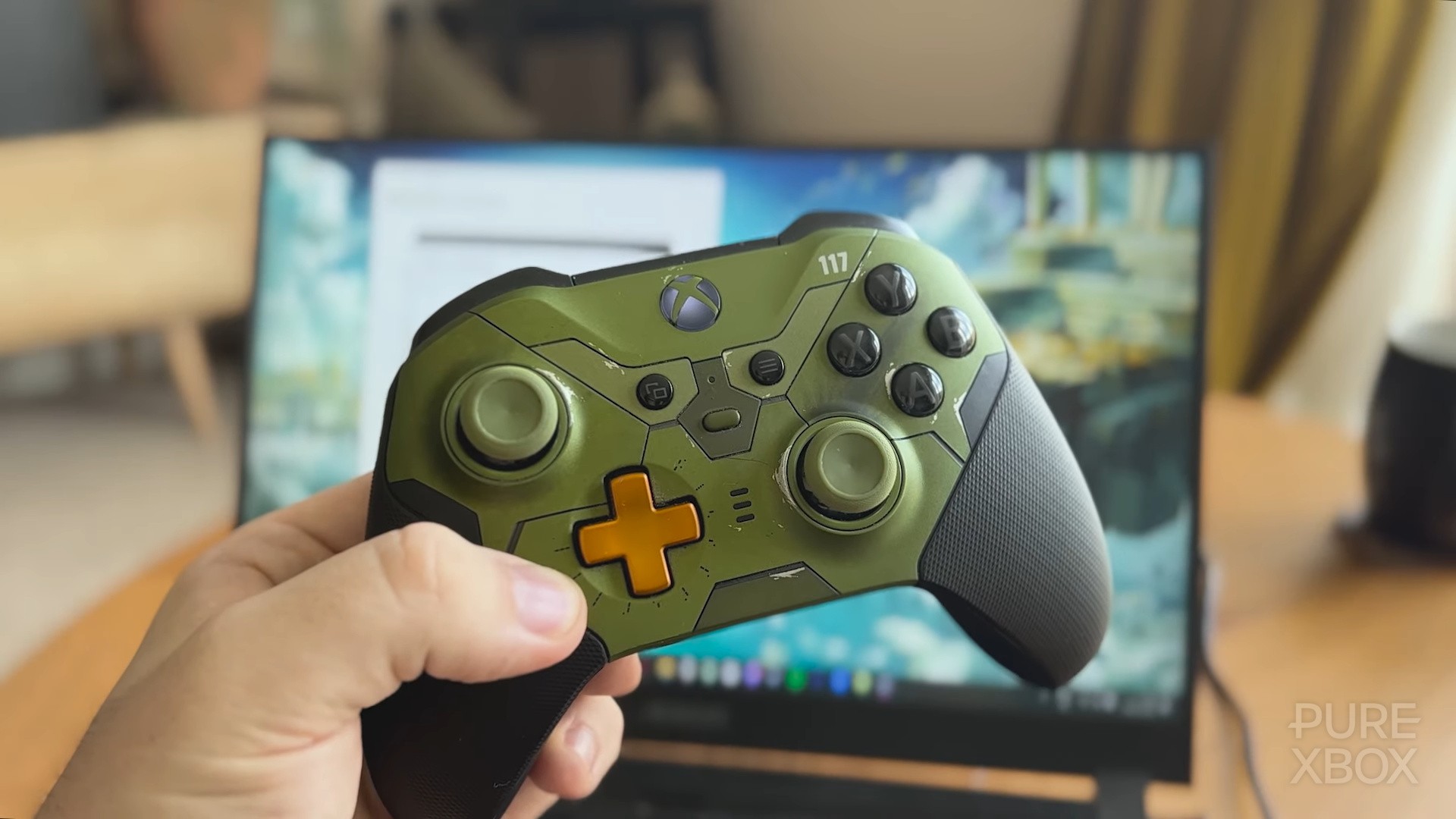
Around a week ago, we spotted a few people complaining that the Guide button on their Xbox controllers (otherwise known as the big Xbox logo that lights up) was behaving strangely when they tried to use it on a Windows 11 PC.
They found that instead of allowing them to turn off the controller, this was opening up the Task View screen instead, and they couldn't figure out a way around it. Here are a couple of examples:
So, it turns out this is actually a new feature! Microsoft is making it so that short-pressing the Guide button (they refer to it as the "Xbox button") opens up the Game Bar, long-pressing it opens up the Task View, and pressing and holding it allows you to turn the controller off.
"We have made some improvements for using Xbox game controllers for gaming on Windows 11. Short pressing the Xbox button opens Game Bar. A new change we’re introducing is when you long press the Xbox button, it will open Task View. Pressing and holding the Xbox button continues to turn off the game controller."
A report on this from The Verge highlights how the upcoming ROG Xbox Ally will have an Xbox button that "opens a handheld-friendly task switcher with a long press", so this new feature is seemingly in preparation for the device's launch in October. That said, it remains to be seen if the Task View will align from device-to-device in the future.
Here's a look at the handheld version of the task switcher for what it's worth:

Anyway, the idea behind this Windows 11 addition is obviously to give you multiple options via the Guide button, but we're hearing that some people are still having trouble turning off their controllers since the update was pushed out.
The good news is that it's still in testing for Windows Insider members right now, so hopefully they'll iron out all the kinks and ensure it's in perfect working order for whenever it rolls out to the wider public - set to be in the near future.